


What is a productivity tool? It’s software designed to streamline a company's processes, a technological solution to improve communication, collaboration, and connectivity.
There are all sorts of them, and they can be useful for everyone, from managers to remote employees who don’t want to get distracted.
To help you navigate the plethora of productivity tools available, we’ve prepared our own little selection. Planning, time management, project management, and communication tools: here are the best productivity tools in 2025.
Productivity tools: the best at a glance
Here is a summary table of our favorite tools. We’ll explain everything point by point in the rest of the article (with some bonus tools!)
| Tool | Platform | Usage | Pros | Price |
| Google Calendar | Online Mobile App | Planning / Time Management | Easy to use, free, easy to share, option to create Google Meet links with one click | Free |
| Monday | Online Mobile App | Team Project Management | Comprehensive tool, simple and intuitive interface, easy-to-set-up automations, integrates with many other tools | From €9 per user per month |
| Slack | Online Software Mobile App | Communication | Easy to use, intuitive and clear | Free version Pro version from €8.25 per month |
| Trello | Online Mobile App | Project Management / Organization | Totally free, very easy to pick up | Free version Pro version from $5 per month |
| Notion | Online Mobile App | Data Centralization / Project Management | Versatile, customizable, intuitive, quite complete free version | Free version Pro version from $8 per month |
Planning and organizational tools for immediate time savings

First off, you need to get OR-GA-NIZED. No more chaotic days where you're everywhere and nowhere at the same time; the idea is to structure your working time into blocks dedicated to a task (or several similar tasks) to have a clear vision and meet deadlines.
We recommend starting with a planner: most productivity software offers one, but you might want a separate planner.
💡 Good to know: as we mentioned in our tips for being more productive, before trying to organize your days and rushing to the first planner you find, the foundation is to list your tasks and prioritize them. Always remember to take time at the end or start of the day to review your to-do list and organize your time accordingly.
🗓️ Google Calendar to plan your days (and share your schedule)

The essential, basic but effective choice. For both professional and personal use, it’s very easy to use and can be shared easily with other users. You just need a Google account and can use it on different devices.
For the link to the calendar, click here.
💡 Good to know: if you’re a fan of the Apple brand, there is a very similar option with Apple Calendar, usable only on iPhone or Mac (not compatible with Windows or Android, and therefore inevitably less easy to share)
🗓️ Cron Calendar for an even more intuitive planner
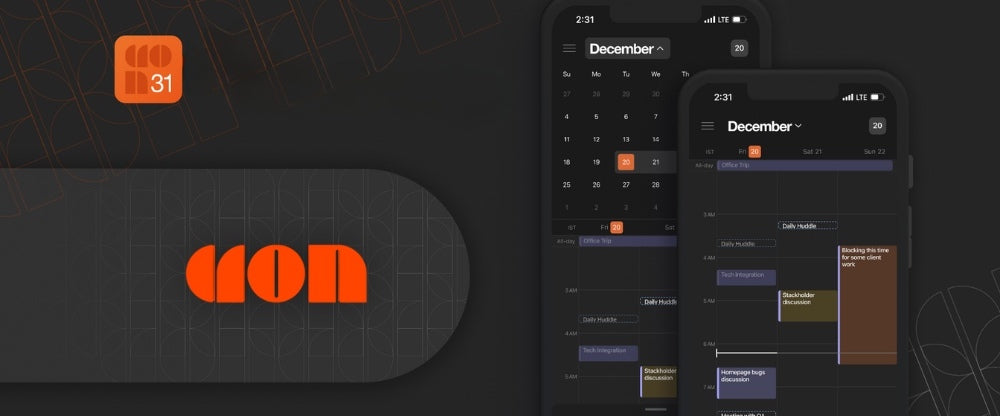
If you’re looking for an alternative to Google Calendar, we suggest trying Cron Calendar. It is a free tool compatible with many browsers and operating systems, available online or by downloading the application.
The difference from Google Calendar might seem subtle at first, but it’s the little, well-thought-out features that can tip the scales:
- The interface is very intuitive: to add an event or a time block, it only takes a click (or even a keyboard shortcut!) to open a side panel that won't disrupt your visibility.
- Cron also offers reminders and countdowns before the next event (meeting, task, or time block) easily visible whether the window is open or closed
- You can add a lot of details to each entry in your calendar, where it can be a bit more tedious with its Google counterpart
- Synchronization with Notion (don't know Notion? That's lucky, we'll talk about it below), as well as with Google Calendar if you want to migrate your planner, or even Zoom and Google Meet to integrate a video meeting link
(NB: the phone app with the widget is only available on iOS for the moment; we hope it will arrive on Android soon!)
And of course, here is the link to Cron.
📅 Calendly to block out time slots easily
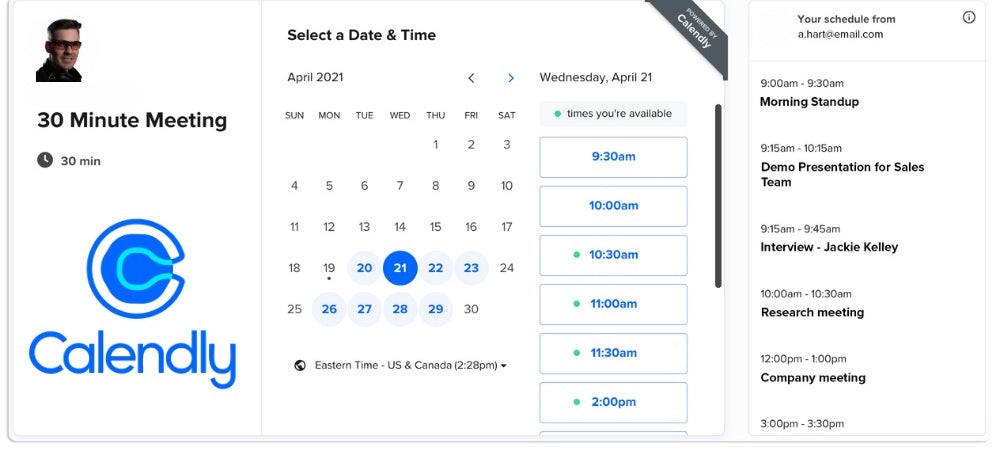
This one isn't really a planner per se, but it allows you to schedule appointments simply and effectively: for video or in-person meetings, professional appointments, or consultations, for example.
You can define your availability in advance, sync it with Google Calendar, and the free version is more than enough if you don't have too many different time slots to manage during the day.
Here is the Calendly link.
🍅 Pomodoro apps to optimize your time and take breaks
Do you know the Pomodoro method for organizing your work time?
This technique, popularized by Francesco Cirillo in the 1980s, allows you to organize your work sessions and be productive for a short period (25 minutes), take a break between each task, and schedule 20 to 30 minutes of recovery after every 4 tasks.
The goal: optimize your time, avoid distractions and stress to be more productive and serene at work.
Here is a list of suggestions for applying the Pomodoro method:
- Focus Tide (formerly AnotherPomodoro): accessible via a browser, it has the advantage of being open source, easy to use, and totally free. If you're looking for a simple and effective tool, we recommend trying it
- Focus Keeper: this is an application to download on iOS or Android, based on the same principle, to easily schedule 25-minute sessions interspersed with breaks directly from your phone
- Pomodor : very simple, accessible directly online, it can be used to easily apply the Pomodoro method without wasting time
💡 Good to know: there are many applications to reduce your screen time and stay focused. We particularly like Forest, which, even though it's paid, is particularly fun (plus, it actually helps replant trees!)
⏱️ Toggl Track for tracking work time
Here is a tool for measuring the time spent on a task once your sessions are finished.
One might think it's designed to spy on you and stress you out, but no, it's actually for you to realize how you manage your time and how you could optimize it better.
Easy to pick up, it can be synchronized with Notion, Slack, Zapier, and many others. And guess what: it includes a Pomodoro timer!
Project management tools to centralize everything
Whether solo or in a team, seeing a project through to the end can be a headache in terms of organization and time management: you can quickly get lost between all the tasks and sub-tasks to complete, what can be delegated, what is high priority, the order in which to do things, who is doing what...
In short, you NEED a project management tool to see things more clearly and gain efficiency. You probably already know that, the question is rather: which one to choose from the multitude of software and apps available?
In our opinion, project management software must be comprehensive. This is why we will only suggest those here that offer the most features while remaining fluid and simple to use.
Monday
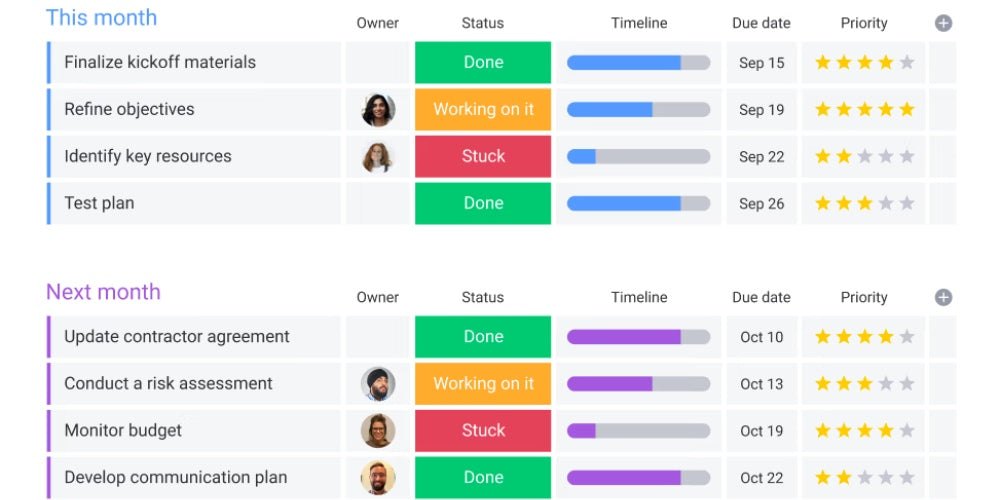
This is our favorite project management tool, the one we use daily at Horus X.
Super simple and complete, this cloud-based operating system allows you to create clear and organized boards for teamwork, where everyone can note the progress of related projects and tasks.
It features an interface that is fairly easy to pick up, a notification panel and an inbox to track updates, and the possibility of creating automations quickly to make the workspace even more intuitive.
A dedicated application is also available, compatible with all platforms.
It is a paid tool, but you have a 14-day free trial to test it and see if it really meets your needs. You can also start with the free version if you work solo or in a duo.
Asana
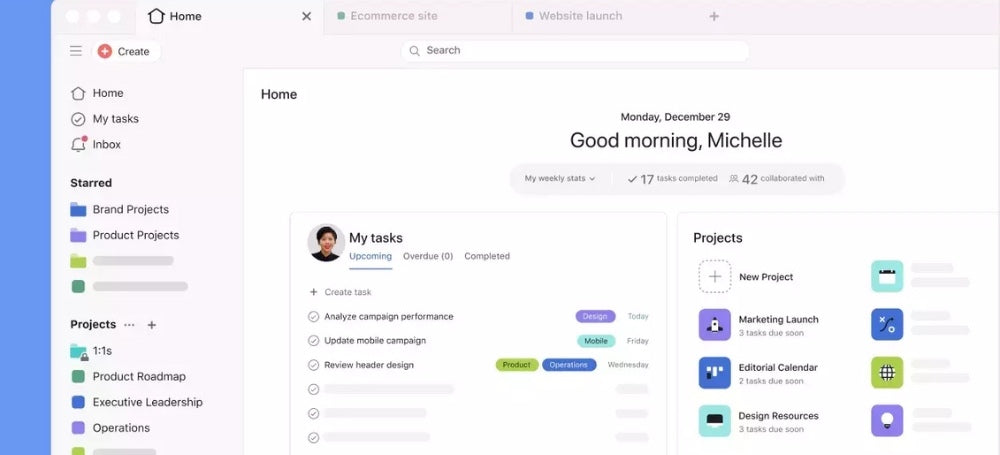
Another well-known name in the world of project management tools, Asana is the main competitor to Monday for organizing team work, whether for entrepreneurs, small or medium businesses, or even much larger ones.
It focuses on teamwork, communication, management, and tracking collaborative tasks.
The free version provides access to a workspace for up to 15 organizers: a great opportunity to test the tool for your team and see if it suits you all before opting (or not) for a paid monthly plan.
Click here for the Asana website.
Trello
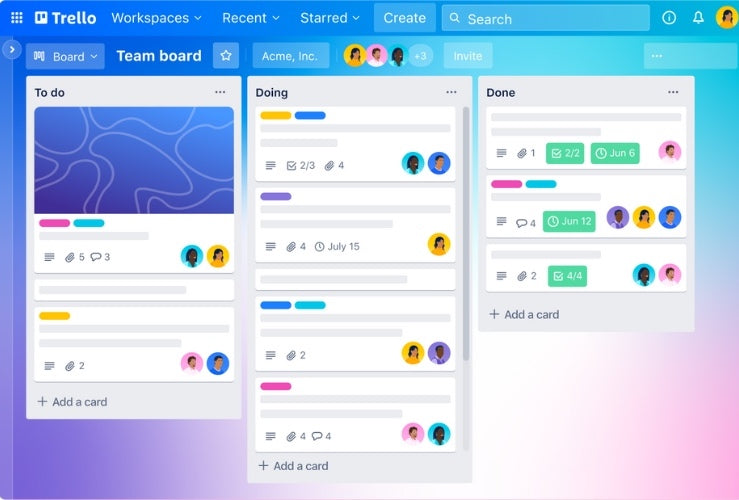
If you are looking for a simple tool to organize your tasks and projects, Trello can be a good solution.
It offers a very simple yet effective interface. The free version allows you to create up to 10 different boards fluidly and quickly.
Inside these boards, you can quickly break down your tasks into customizable cards to have an overview of the work to be done, what to prioritize, the different stages, and project progress.
Very nice for individual use, it can also allow you to share your boards for teamwork.
Here is the official Trello website for more info.
Notion

Here, we are talking about a very versatile tool that can be used for everything, or almost everything. It is presented as a possible alternative to project management software and applications. Notion is a minimalist and ultra-customizable online interface (and also a mobile app), a bit like a second brain that allows you to create lists, duplicate templates, centralize and organize information, and manage tasks.
Once you get the hang of it, you realize the potential of Notion, whose free version remains very complete, with quite a few possible integrations: Zapier, Canva, Dropbox, Google Drive, Pinterest, Qonto, Slack, Typeform, Zendesk...
Here too, you can easily create pages and databases to share access.
Here is the link to the Notion website to learn everything.
Optimizing communication and emails to improve productivity at work
Who hasn't been drowned under emails and various Whatsapp conversations when everything could have been gathered in the same place?
The extension of a project management tool is obviously those that allow you to communicate effectively with the rest of your team or your clients, without spending hours retrieving the slightest crumb of information.
This involves managing emails as well as direct internal communication.
Slack
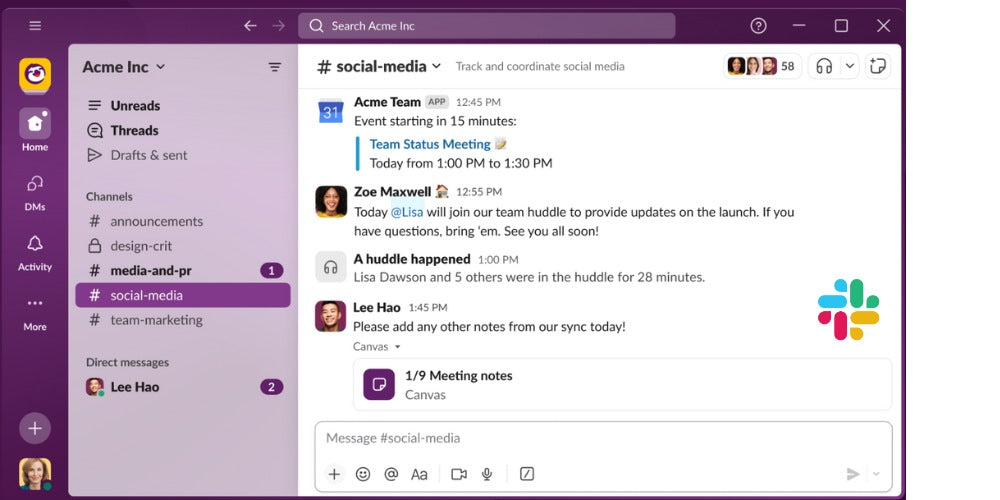
Another of our favorites for communicating easily and effectively as a team.
Very easy to use, Slack is designed to allow you to create threads and channels dedicated to your projects, and share documents for collaborative work.
Super intuitive and clear, it is ideal for keeping yourself and your team informed in real-time about project progress, asking questions privately, and exchanging information collaboratively.
The free version offers 10 different workflows with 5GB of storage and limited conversation archiving. Again, it's up to you to see if that's enough or not.
The Slack website, is right here.
Discord

If you have the soul of a gamer, you surely already know Discord.
Like Slack, it is a collaborative application with channel creation, file sharing, and instant messaging, which is also used for internal business communication.
It might seem a tad less intuitive than Slack, but it aims to be more unconventional and creative.
Bonus point: it is more attractive in terms of pricing and offers a fairly complete free version.
Here is, of course, the link to Discord.
Google Meet

If you want to organize video calls easily and for free, we recommend trying Google Meet.
The duration of video calls is limited here as well (60 minutes, but who likes meetings longer than an hour anyway?), and you can organize them directly from Google Calendar and share the connection link.
You can share your screen, chat via instant messaging, share files—in short, Google's free tool is quite well-designed for basic use.
Here is the link to Google Meet.
For professional use, you also have Microsoft Teams, which integrates very well with the Google Workspace suite.
Zoom
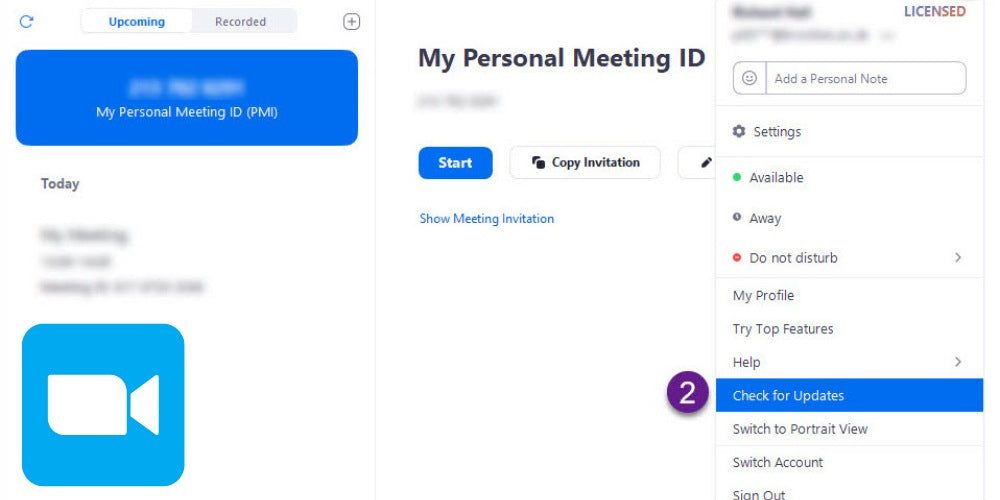
In the era of remote work, team meetings and calls are now often done remotely: more practical and more flexible, video conferencing helps avoid on-site meetings that are sometimes complicated to coordinate.
Often compared to Google Meet, Zoom has the same options with a few extras: depending on the version chosen, you can host meetings for up to 300 participants, access local recordings, schedule meetings, and even display translated subtitles.
Obviously, these features come at a price: the free version limits video meetings to 40 minutes, with no possibility of creating a replay link.
Quickly, Zoom, is this way.
Bonus tips to increase productivity

Of course, this list is not exhaustive, and at the risk of repeating ourselves, everything starts with developing good organizational habits and a healthy lifestyle.
Because yes, when you work on a screen, comfort is essential to gain productivity but also to stay in good health (physical AND mental health). We therefore offer you as a bonus some essential reminders about health at work:
- ⏸️ Have a break (not a KitKat): breaks are essential to clear your mind and return to your desk more focused. It's not a lazy habit, it's a game changer for your productivity (don't hesitate to take a screenshot to show it to your boss, you're welcome).
- 👀 Your eyes deserve the best: if you work on a screen, your little peepers are taking the full force of artificial blue light, the cause (among others) of the famous eye fatigue. To prevent these dangers, opt for glasses that offer excellent blue light filtration from screens, for more comfort.
- Don't neglect the importance of ergonomics at work: we detail EVERYTHING you need to know in our complete guide on workstation ergonomics, to finally work in good conditions, adopt the right gestures and postures, and avoid musculoskeletal disorders.
Final word: the best productivity tools to save time and gain efficiency
- To gain efficiency at work, you need to adopt the right habits but also choose the right tools: those that will be adapted to your use and that will be the most intuitive for you to master.
- The various productivity tools cover the areas of time management, task management, project management, and communication. If we had to summarize the essentials: a good planner, an app to limit screen time and avoid distractions, a complete and readable board for project management, and an efficient communication software.
- But it doesn't stop there! Having good tools is good, making the most of them is better. We therefore advise you to take the time to get to know each tool, each app, and each interface you want to test to see if it really suits you and how to use it to its full potential.